2.7. PowerPoint how-to
How-to information for useful PowerPoint skills.
2.7.1. Browsed at kiosk
By default, PowerPoint moves through the presentation with every click which is not helpful if you have buttons for navigation. To solve this you need to disable the click to move on by selecting ‘kiosk’ mode.
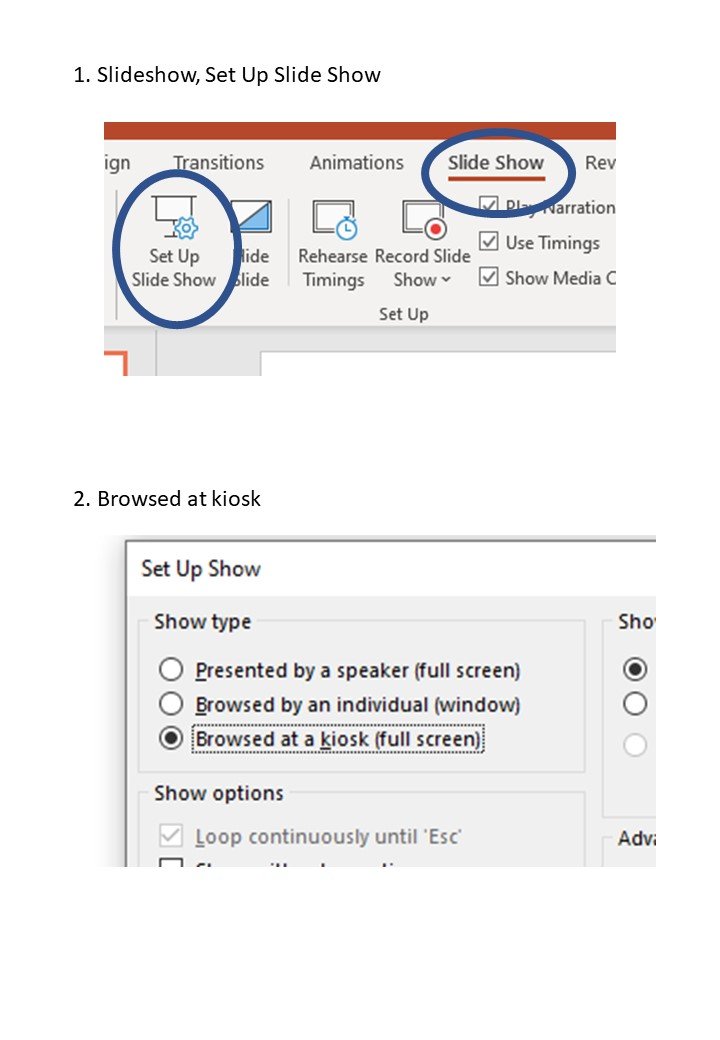
A few picture clues
Note
When in present mode, you can use ‘Escape’ on the keyboard to get out of kiosk mode.
2.7.2. Buttons and hyperlinks
Adding buttons for users to navigate your presentation in a non-linear order is an interesting twist to make it more engaging but is also essential if you are making an Interactive Multimedia Presentation.
You can create links from text or pictures or shapes. If you are creating a navigation system it would be best to add shapes to be your buttons which you then hyperlink.
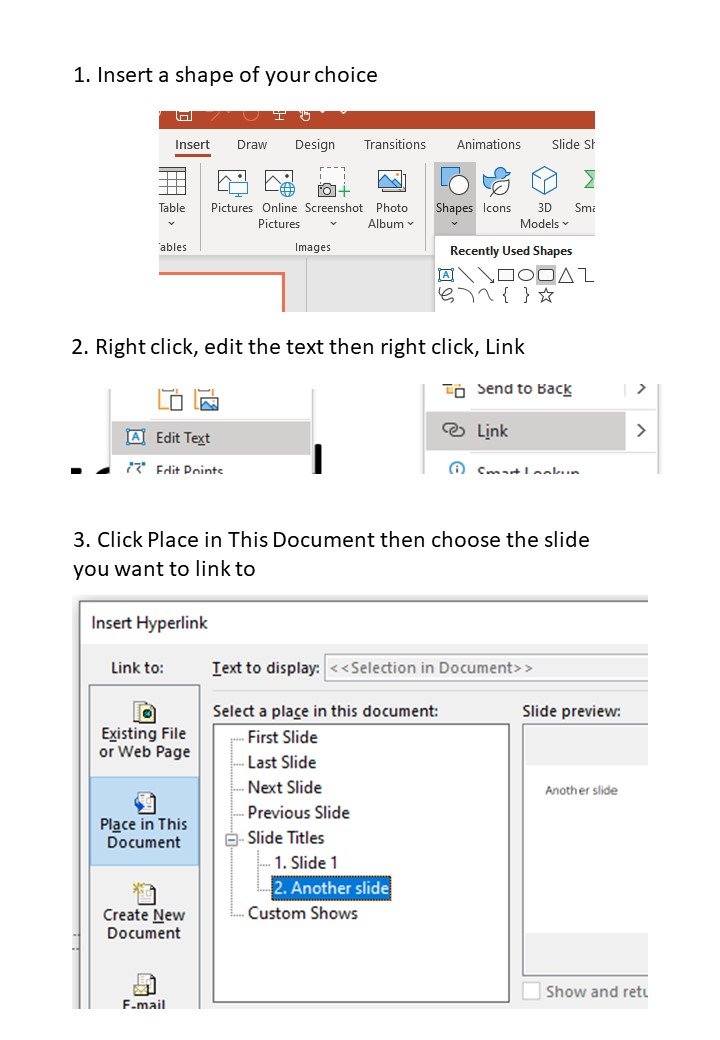
A few picture clues
2.7.3. Export as PowerPoint Show
Sometimes, when creating an Interactive Multimedia Presentation using PowerPoint you need export it as a standalone package so it can be used by the client without needing their own copy of PowerPoint. The other reason would be if they wanted to use it but not let anyone edit the final presentation. In this situation you can export your finished product as a PowerPoint Show.
Note
You will need to have the presentation open in the app, not the web version of PowerPoint.
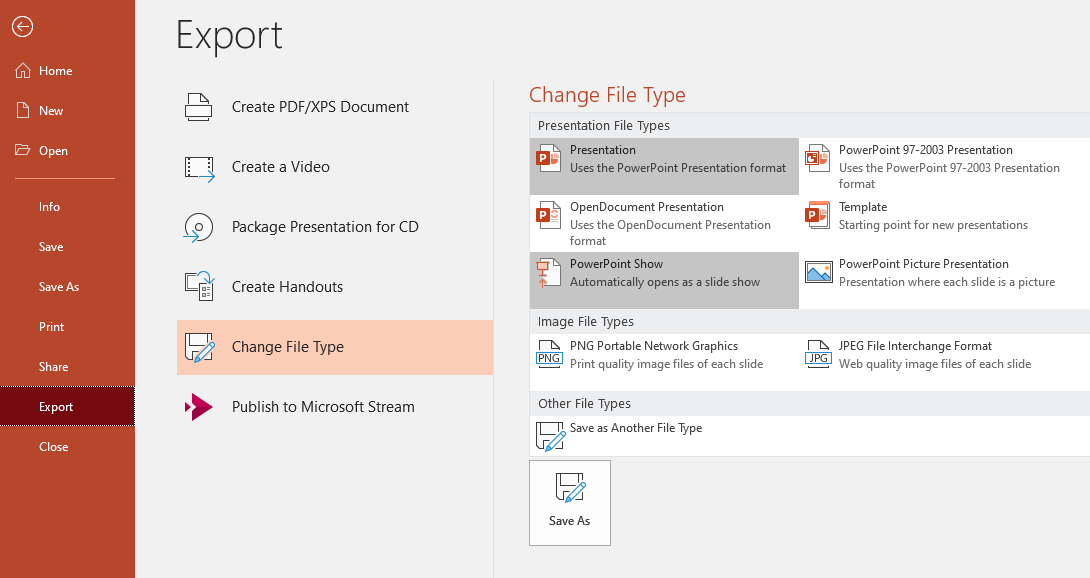
A few picture clues
2.7.4. Navigation bar
You can use the Buttons and hyperlinks skills to create a navigation bar for your presentation.
Note
You will need to have the presentation open in the app, not the web version of PowerPoint.
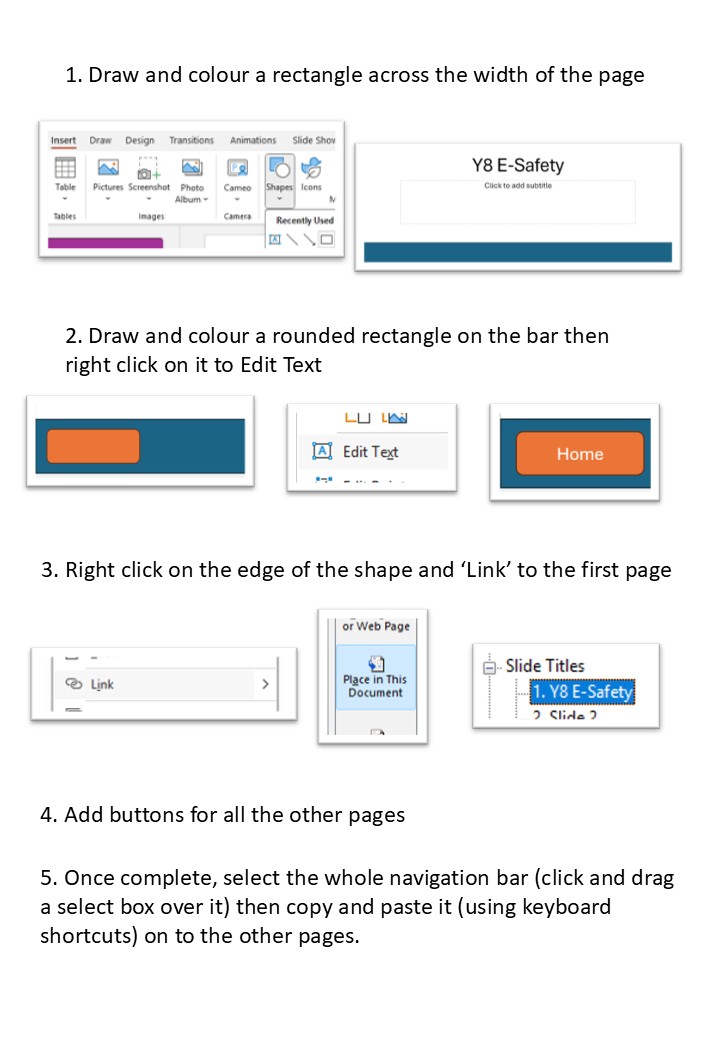
A few picture clues
2.7.5. Motion paths for animations
As well as ‘standard’ animation of elements in PowerPoint, it is possible to add more complex movements called motion paths. You can also use the animation pane to control the speed and order of multiple animations on your page.
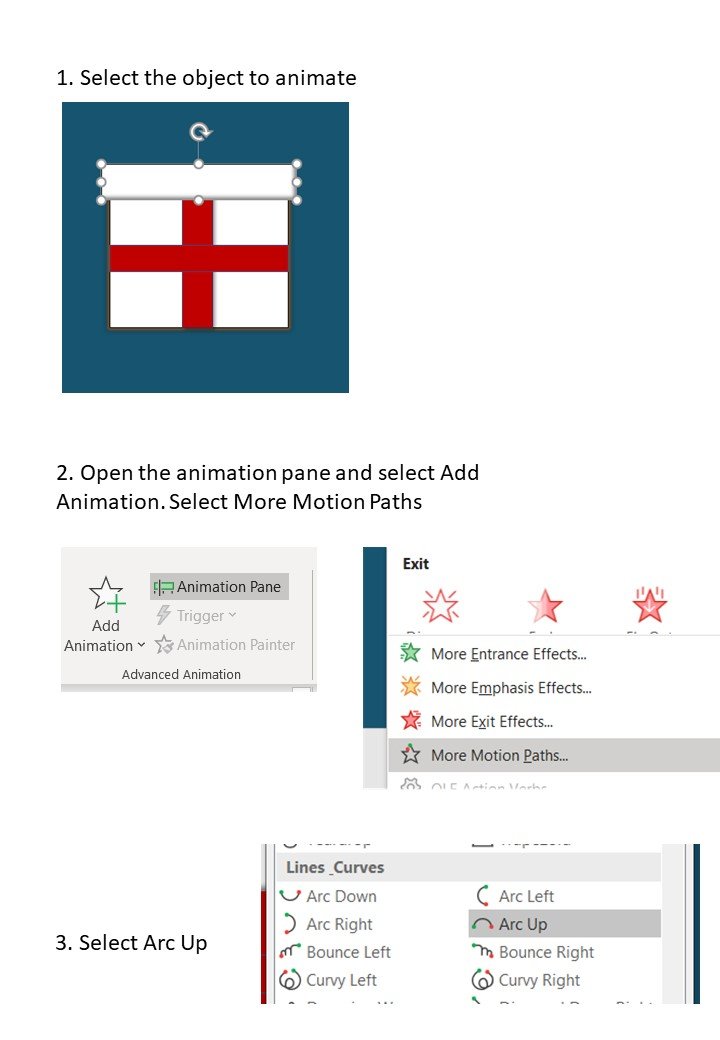
A few picture clues