1.8. Creating shadows
Copy the picture of the bottle on to a new document and add a shadow. There are different ways of achieving this so you will need to choose your approach but one option is to use the Layers approach.
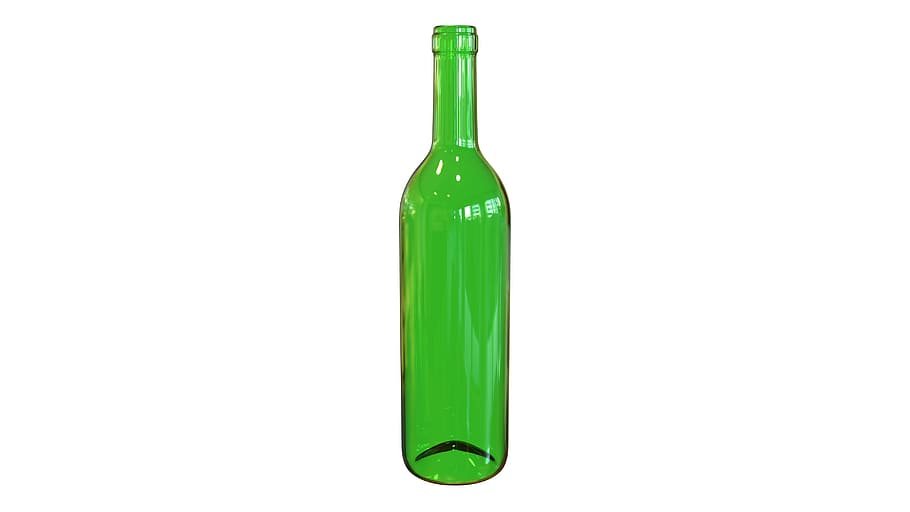
Right click, copy image
Use the Quick Selection Tool to select the bottle. Copy it (Ctrl+C) and paste it (Ctrl+V) so it creates a second layer with just the bottle.
Select the new layer with just the bottle on and no background on the right hand side of the page.
(Click okay on the dialog box that pops up)
(Click okay on the warning dialog box that pops up)
You now have the shadow in a separate layer so you can select the layer and Ctrl+T to Transform it (move, rotate, resize etc.).
You can also skew it using
The best way to learn it to have a go and practise so you can see what happens but if you are stuck, this Creating shadows video might help.
Here is one example of what the original picture might look like when finished:
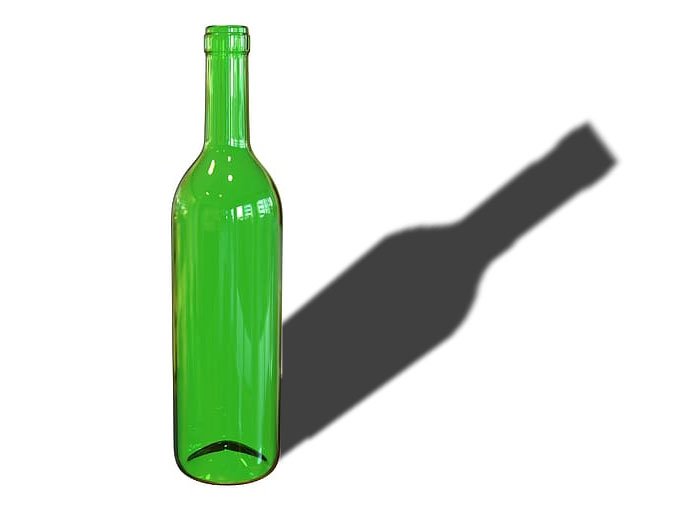
One possible solution