1.9. Layers
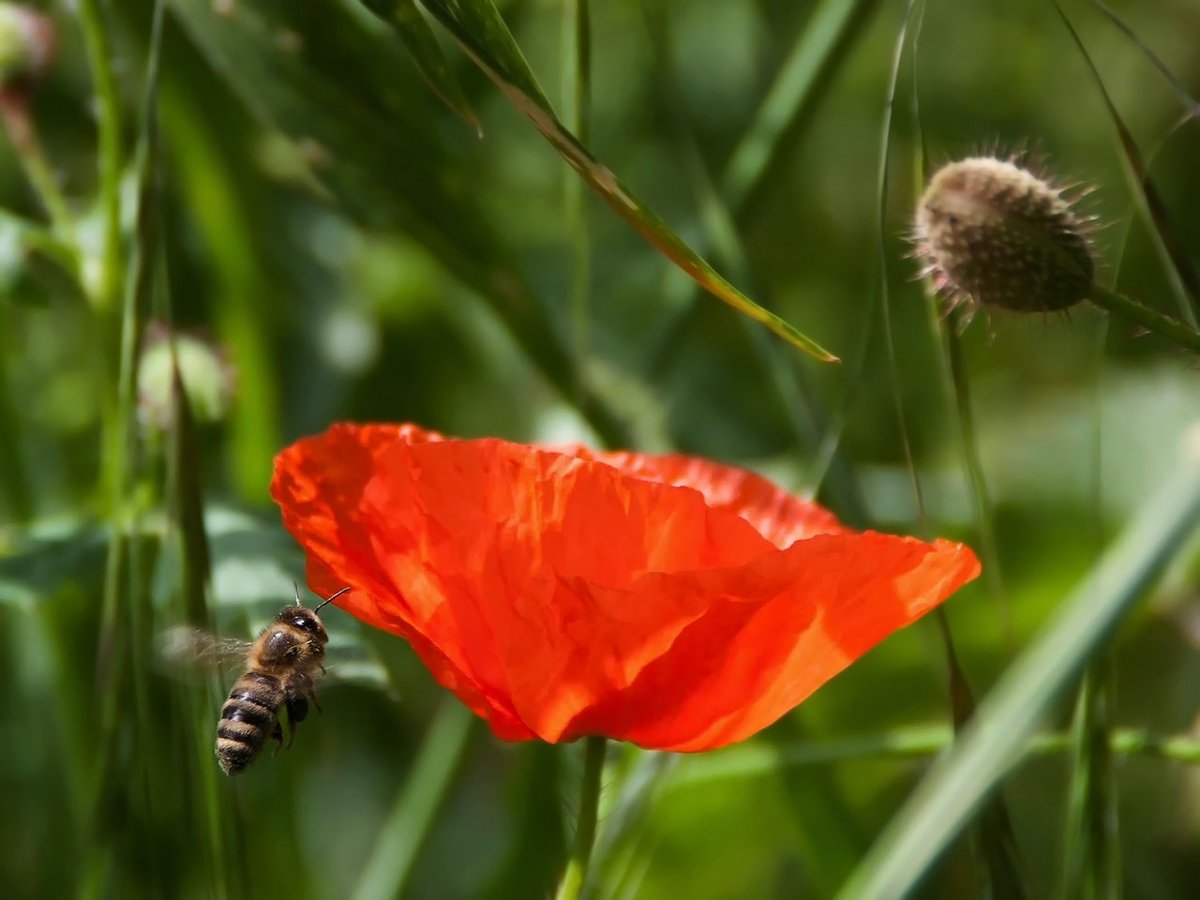
Right click and copy this image to use it
For this activity you are going to duplicate a layer then delete something off the top layer so the layer underneath shows through. It is a good introduction to using layers in Photoshop.
Copy the poppy picture above then create a new canvas in Photoshop and paste the picture.
Right click on the layer (right hand side) and duplicate it.
Select the top layer then use the [Quick Select Tool](/learn/quick-selection-tool-photoshop) to select the poppy then delete it using the delete key on your keyboard.
It will look like it hasn’t deleted because of the layer underneath. Use CTRL+D to deselect.
On the menu go to Image –> Adjustments –> Black and White
This should make the top layer black and white and leave the coloured poppy underneath showing through.
Experiment with clicking the eye next to the layer to toggle visibility.
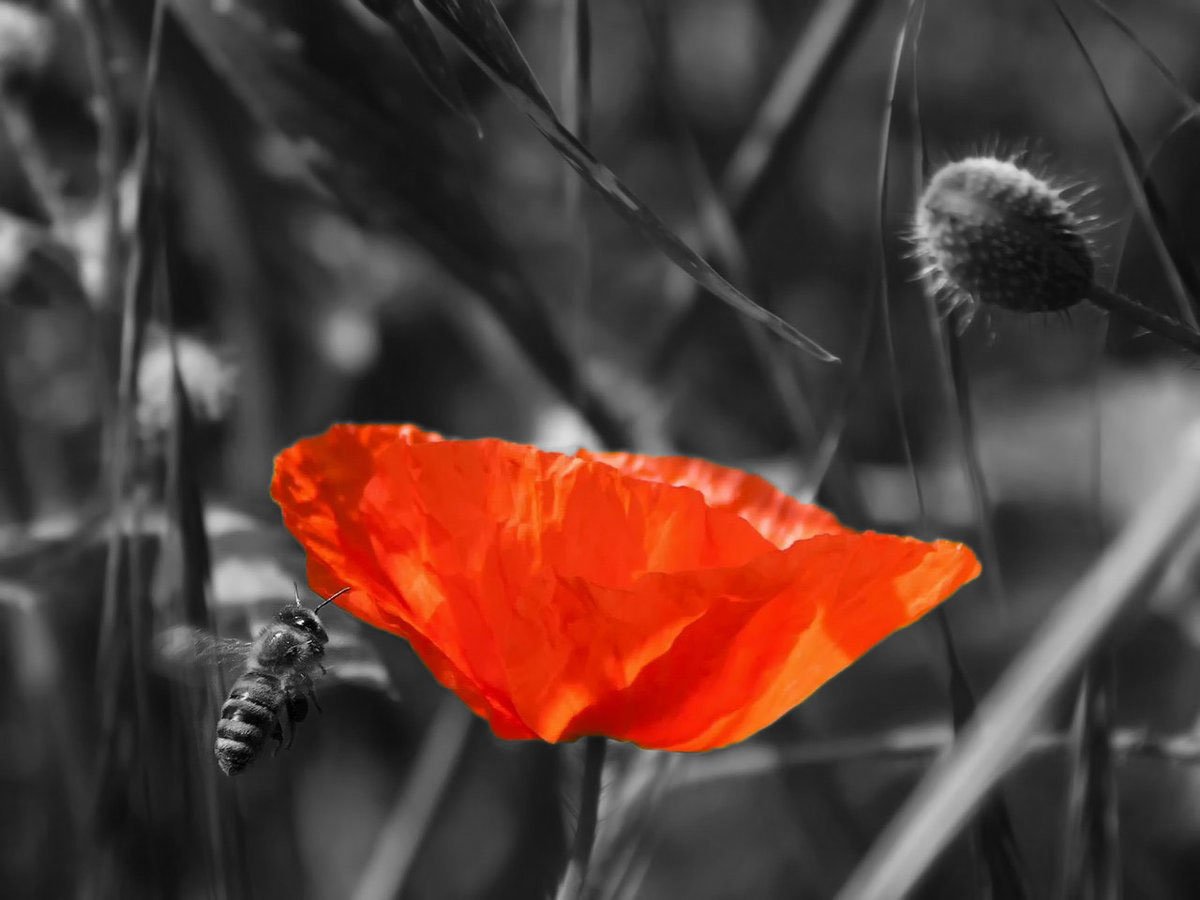
This is what it should look like when finished